
I feel we’re past the “hype” phase of having an Oracle Database running on Azure/AWS/GCP and it’s “just” an Oracle Database running in specific cloud using Oracle Cloud technology.. Now we are finally starting to see people looking on what can you do once you migrate to your cloud of choice.
One frequent thing is on how do you get the data out from the Oracle Database so you can leverage it with the cloud services. Oracle GoldenGate comes up frequently and with all the clouds, it’s also super easy to setup. As you can see below, all clouds are supported.
https://docs.oracle.com/en/solutions/implement-goldengate-azure/index.html
https://docs.oracle.com/en-us/iaas/releasenotes/goldengate/r8connections.htm
But, in this post we’re going to look something different! What if we setup data sync with native Microsoft tools. We’re going to use Microsoft Fabric as our data destination and use the Fabric Mirroring for Oracle which came globally available just recently.
In the first post, we’re just going to focus on installation of the tools and second post requirements to setup the mirroring from Oracle Database@Azure (Exadata).
First; What is Microsoft Fabric?
Microsoft Fabric is an analytics platform that supports end‑to‑end data workflows, including data ingestion, transformation, real‑time stream processing, analytics, and reporting. It provides integrated experiences such as Data Engineering, Data Factory, Data Science, Real‑Time Intelligence, Data Warehouse, and Databases, which operate over a shared compute and storage model.
Setup
Since I’m not as good with Microsoft ecosystem as with OCI, there might be some mistakes with language or something I did here. I do want to say that it took lot of figuring out due to user access/licenses to do the setup which in paper looks fairly straightforward.
Tutorial that I followed is here: https://learn.microsoft.com/en-us/fabric/mirroring/oracle-tutorial
In short it looks fairly easy.
- Enable Fabric with trial or provisioned capacity
- Setup Oracle Database to support synchronization
- Install Data Gateway
- Configure Mirroring
I did spend most of the time on Enabling Fabric and setting up the Data Gateway. Let’s look those first.
When I was enabling Fabric, I started with the trial option that you can enable easily, but ran into some errors and I thought I have to have paid capacity for Oracle Mirroring. So, I did setup the minimum F2 capacity which is around $200 USD per month, you could try this same with the trial and see what happens.
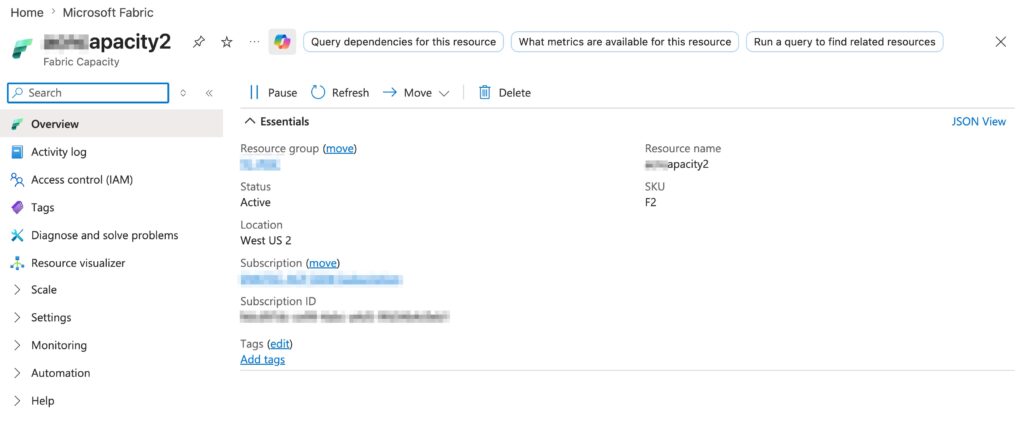
Note that my Fabric capacity above is in West US 2. My Oracle Database@Azure is in East US but that will be ok for this test. In reality you’d want to look if you have the capacity in the same Region as your Oracle Database if possible.
Also, my “home” region for the licenses is Central US. More on this shortly as this gets messy for my untrained Azure skills.
Installing On-Premises Data Gateway
Here the name is misleading as this will be used to sync data from Oracle DB@Azure to Fabric. This is also where most of my problems existed..
The installation itself is really straightforward, you can install the data gateway from link from this document: https://learn.microsoft.com/en-us/data-integration/gateway/service-gateway-install
During the installation on Windows Server, you will need to sign-in with your Azure/Entra credentials for the tenant/subscription you are using. This was my first issue, the subscription I’m using with my company credentials, does not allow me to login from unregistered devices, so I couldn’t use my own account which would have had all the licenses.
I did setup service account in my tenant for this purpose with proper permissions, however, after signing up and setting up Gateway, it kept telling me that Fabric is not available. This is what I ended up with:
- You have to have Power BI Pro license for the user
- The Power BI Pro license home region will determine what region you will place the Gateway region (? Maybe – this is just how I got it to work)
- This region is unrelated to where your Exadata@Azure or Fabric capacity is deployed
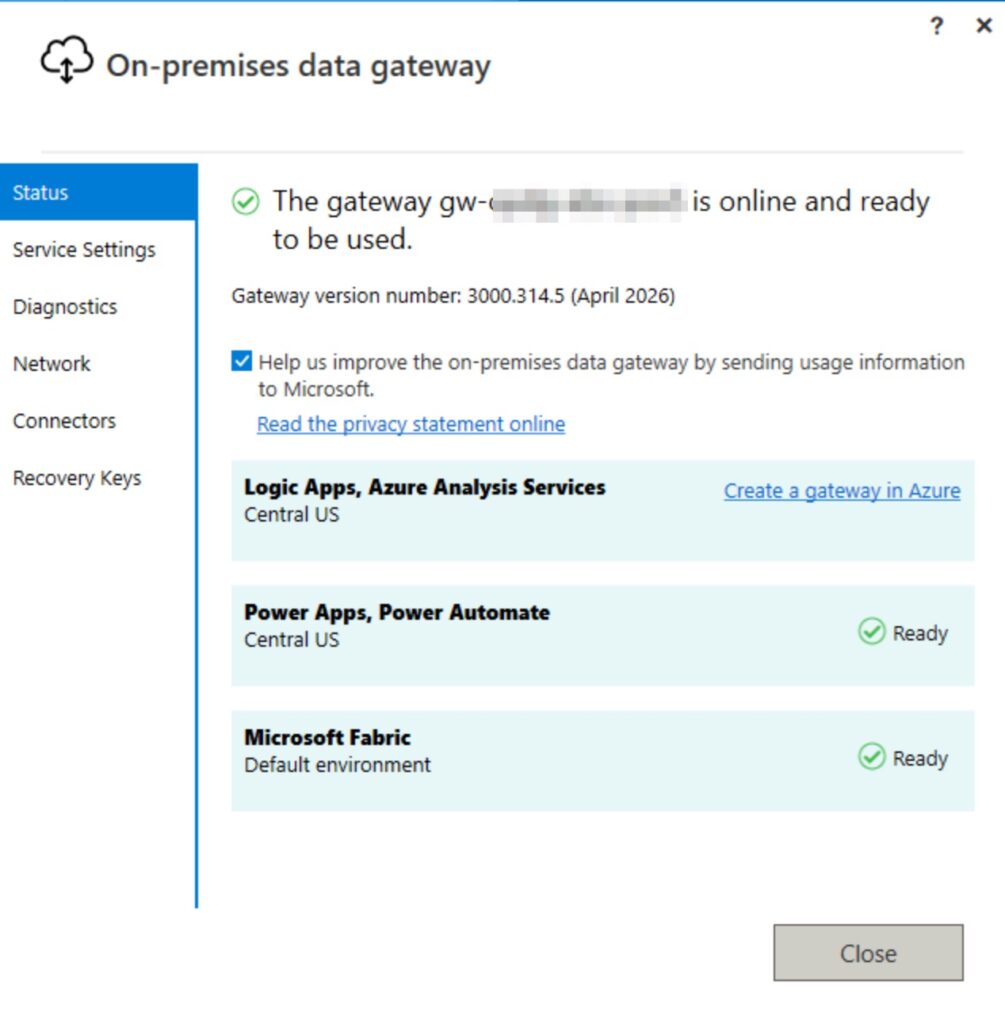
Once above was done (which took me almost half day), I could see Gateway first registering Fabric ok in the Windows app and then visible in the Power BI admin console, AND in the Fabric admin console in the connections & gateways view. Two very different places, but when my Fabric connection wasn’t available, I could debug if everything is setup correctly from the Power BI admin console.
Data Gateway after successful installation:
Generic URLs for both:
https://app.fabric.microsoft.com
From the Fabric Admin Console you can first see gateway is visible:
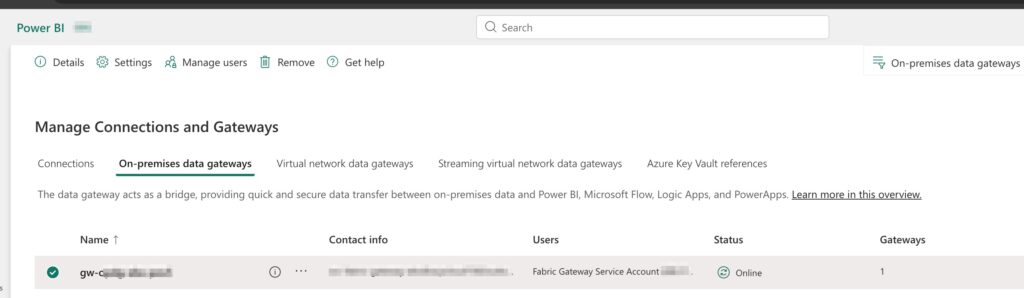
Next step is to go to connections and setup connection before setting up Oracle Mirroring. I noticed you can setup the connection also from Oracle Mirroring but I did have success this way.
The documentation is slightly misleading, I couldn’t use DB SCAN name or connection string like I could see suggested. I DID HAVE TO INSTALL ORACLE COMPONENTS as follows:
- ODAC driver (unmanaged ODP.NET)
- Oracle.DataAccess driver
- Managed ODP.NET
This is installation script I made during the process:
# Extract ODAC zip
Expand-Archive 'C:\Users\tfg\Downloads\ODAC19.29Xcopy_x64.zip' 'C:\temp\ODAC1929'

# Install unmanaged ODP.NET 4
Push-Location C:\temp\ODAC1929
cmd /c install.bat odp.net4 C:\oracle\product\19.29\client_1 OraOdac1929
Pop-Location

# GAC-install Oracle.DataAccess (XCopy install.bat doesn't do this by default)
& 'C:\oracle\product\19.29\client_1\odp.net\bin\4\OraProvCfg.exe' \
  /action:gac \
  /providerpath:'C:\oracle\product\19.29\client_1\odp.net\bin\4\Oracle.DataAccess.dll'

# Install managed ODP.NET (odpm component)
Push-Location C:\temp\ODAC1929
cmd /c install.bat odpm C:\oracle\product\19.29\client_1 OraOdac1929
Pop-Location

# Register managed driver in machine.config (DbProviderFactories)
& 'C:\oracle\product\19.29\client_1\odp.net\managed\x64\OraProvCfg.exe' \
  /action:config \
  /product:odpm \
  /frameworkversion:v4.0.30319 \
  /providerpath:'C:\Windows\Microsoft.NET\assembly\GAC_MSIL\Oracle.ManagedDataAccess\v4.0_4.122.19.1__89b483f429c47342\Oracle.ManagedDataAccess.dll' \
  /set:settings\TNS_ADMIN:'C:\oracle\network\admin'

# ix DllPath registry (XCopy install left it pointing at the extract temp dir)
Set-ItemProperty -Path 'HKLM:\SOFTWARE\Oracle\ODP.NET\4.122.19.1' \
  -Name DllPath -Value 'C:\oracle\product\19.29\client_1\bin'
Set-ItemProperty -Path 'HKLM:\SOFTWARE\Oracle\ODP.NET\4.122.19.1' \
  -Name TNS_ADMIN -Value 'C:\oracle\network\admin'

# Set ORACLE_HOME at machine level (XCopy install does NOT set this)
[Environment]::SetEnvironmentVariable('ORACLE_HOME', 'C:\oracle\product\19.29\client_1', 'Machine')
[Environment]::SetEnvironmentVariable('TNS_ADMIN', 'C:\oracle\network\admin', 'Machine')
# Prepend %ORACLE_HOME%\bin to PATH at machine level

# Grant the gateway service identity read on Oracle Home
$acl = Get-Acl 'C:\oracle'
$acl.SetAccessRule((New-Object System.Security.AccessControl.FileSystemAccessRule(
  'NT SERVICE\PBIEgwService','ReadAndExecute','ContainerInherit,ObjectInherit','None','Allow')))
Set-Acl 'C:\oracle' $acl

# Restart PBIEgwService so workers respawn with new env / machine.config
Restart-Service PBIEgwService -Force
Also modifying tnsnames with my DB details:
EBSDB =
  (DESCRIPTION =
    (ADDRESS = (PROTOCOL = TCP)(HOST = exa1.scan.ocisuboradb.ocivnetoracle.oraclevcn.com)(PORT = 1521))
    (CONNECT_DATA =
      (SERVER = DEDICATED)
      (SERVICE_NAME = EBSCDB_EBSDB.paas.oracle.com)
    )
  )
After that I could use EBSDB as connection identifier in the configuration page (connection name & server name):
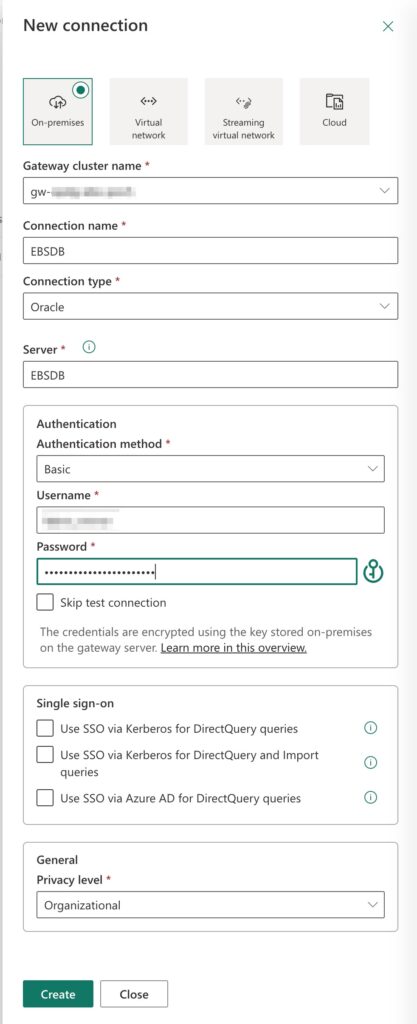
Success! At that point in time I was able to connect to my Oracle Database with Fabric.
Summary
This post was to document the setup process of Microsoft Fabric & Data Gateway connecting to Oracle Database@Azure (in this case Exadata). Documentation is slightly misleading and I did have to play around with my Azure service account, licenses and also how to establish connection to the database.
All good in the end!
In part 2 I will look on what is required to setup Oracle mirroring from database to Fabric.